INSIGHTS PORTAL SIGN UP
💡
If you already have a Ronin account then you can use that account to sign in to Insights. You do not need to sign up again.
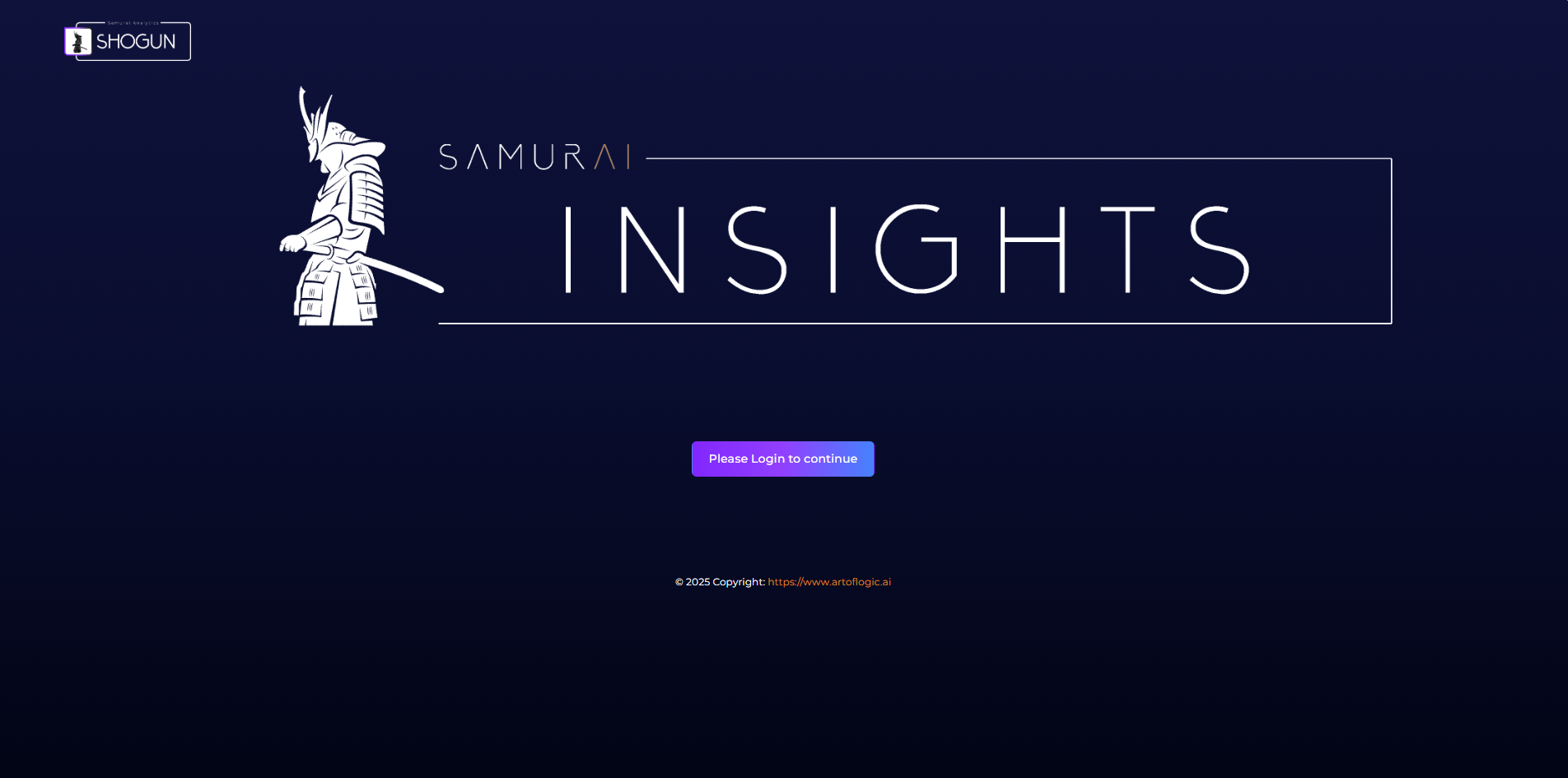
1 - Navigate To The Webpage
Open a web browser and navigate to the following url:
Then click on the "Please Log in to continue" button.
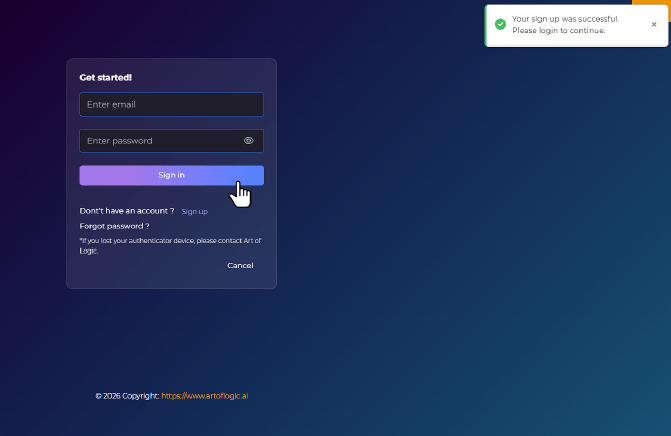
2 - Start Sign Up Process
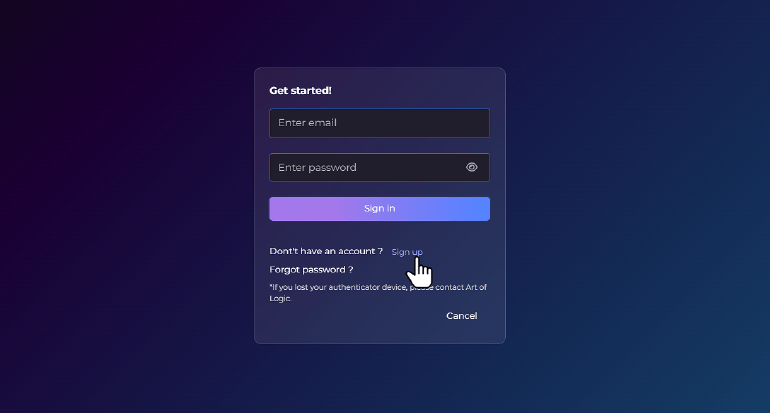
Click on the "Sign Up" link.
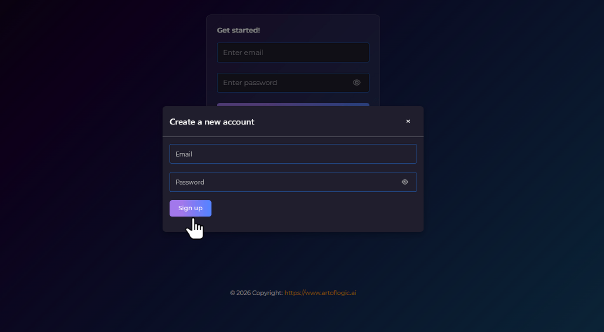
This will bring up the following pop up where you can enter the email you wish to sign up with and create a password for the account:
3 - Email Verification Code
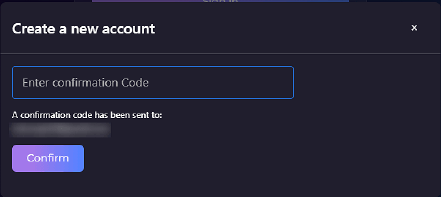
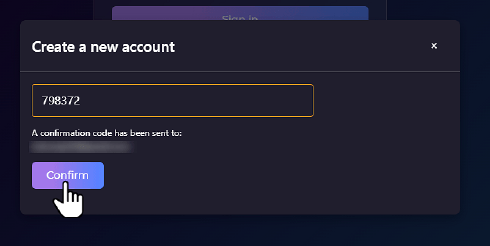
After you click the Sign Up button in the previous step you will see the following tab pop up asking you to enter a confirmation code.
You can find this confirmation code in the email that was sent to the email account you entered in the previous section. The email should look like this:
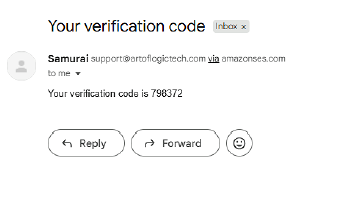
Once you receive the email, copy the confirmation code and enter it into pop up tab from before, then click Confirm.
4 - Sign In
You should be redirected back to the login page. Enter in your newly created account details and click on the "Sign In" button.
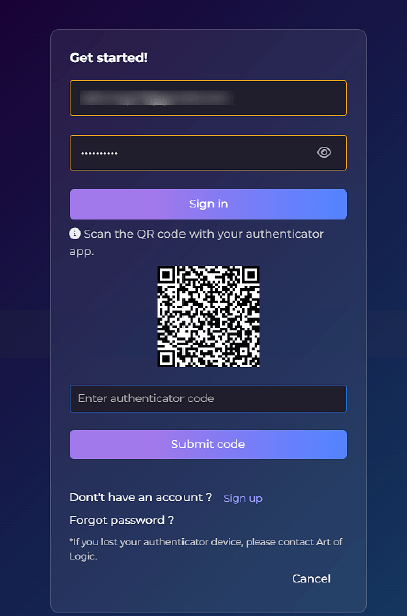
Setup MFA With QR Code
You should now see a QR code appear. You will need to have an authenticator app such as Google authenticator or Microsoft authenticator which you can download on a mobile device. Once you have an authenticator app you can scan the QR code.
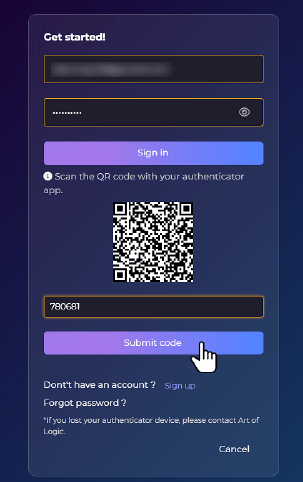
Once you have scanned the QR code you can copy the authenticator code provided from your authenticator app into the text field and then click on the "Submit Code" button. Be mindful that the authentication code will be changed every 30 seconds so if it doesn't work it may be because the code expired before you could click on the submit button.
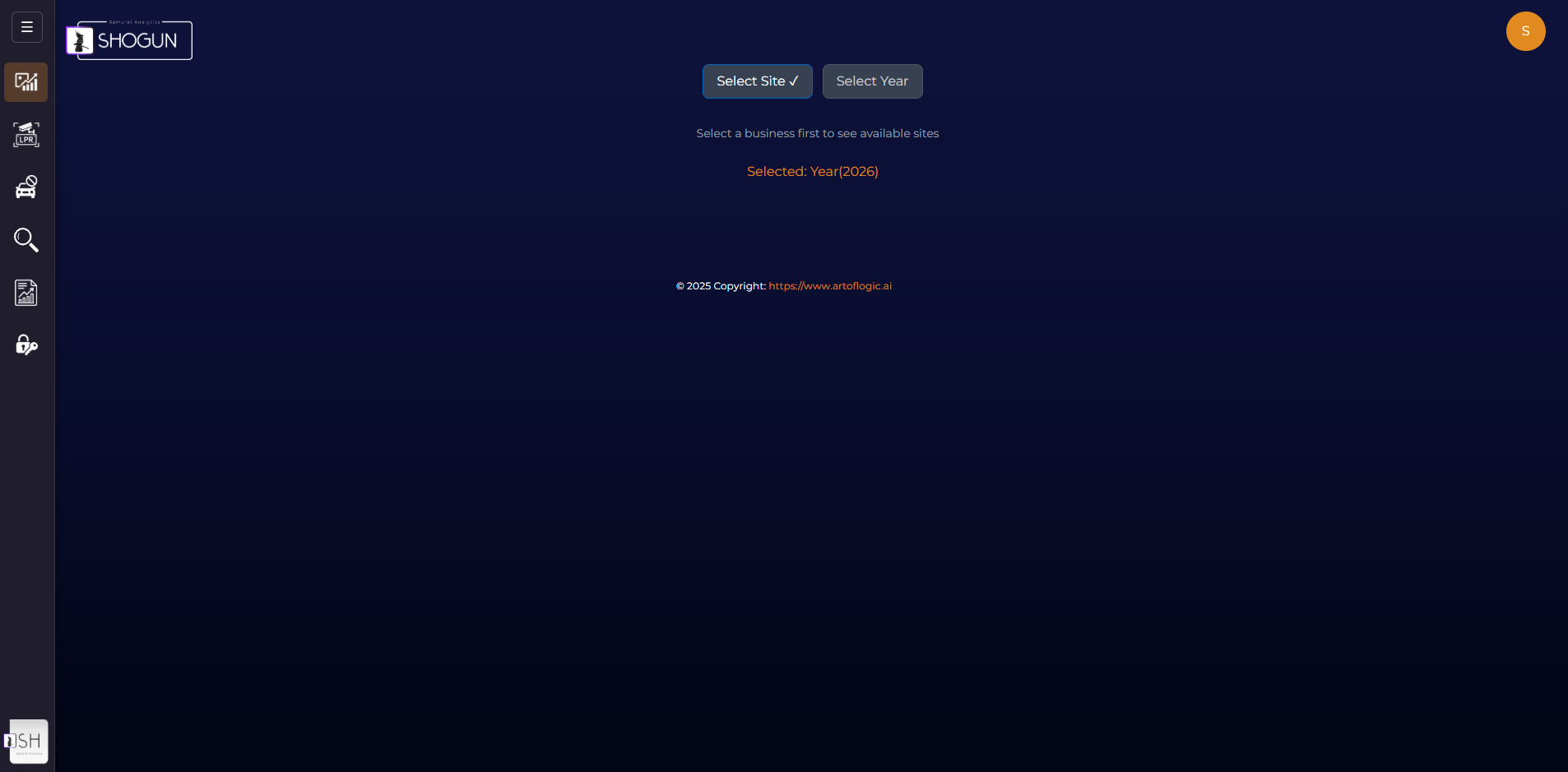
You should now be signed into your newly created Insights account. If the page looks like the one below then that means that you do not have a business created within our system yet. To create one you will need to login to your ronin account at
ronin.artoflogic.ai which will be the same account you just created for insights. For a guide on how to create a business click here:
📄 Ronin Portal Sign Upand head to the Create Your First Business section.
5 - Where to find your business token?
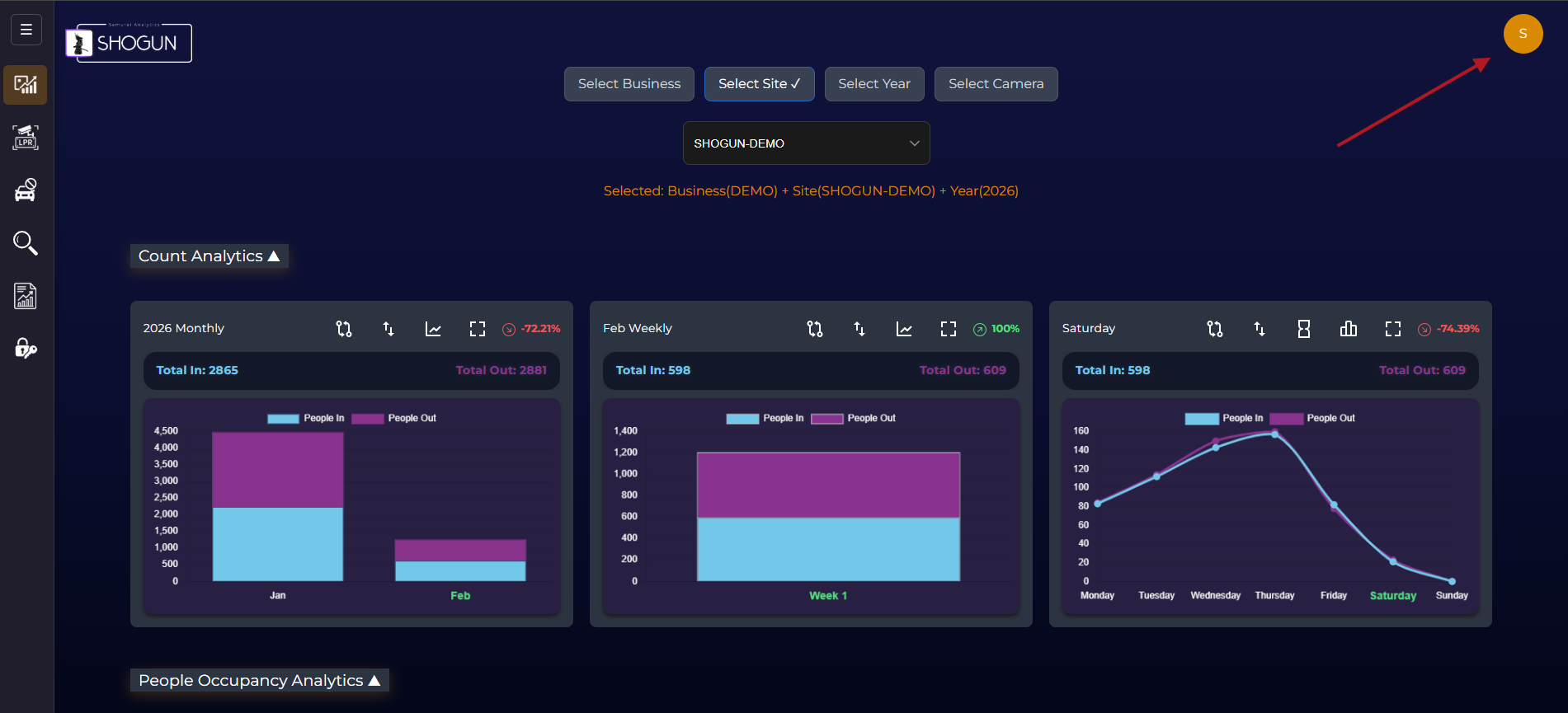
From anywhere within the Insights portal you can find your business token by clicking on your profile icon in the the top right hand side.
You will then see the following tab pop up;
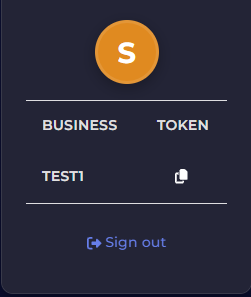
Then click on the copy icon to copy your business token to your clipboard.