RONIN PORTAL SIGN UP
1 - Navigate To The Webpage
Then click on the "Please Log in to continue" button.
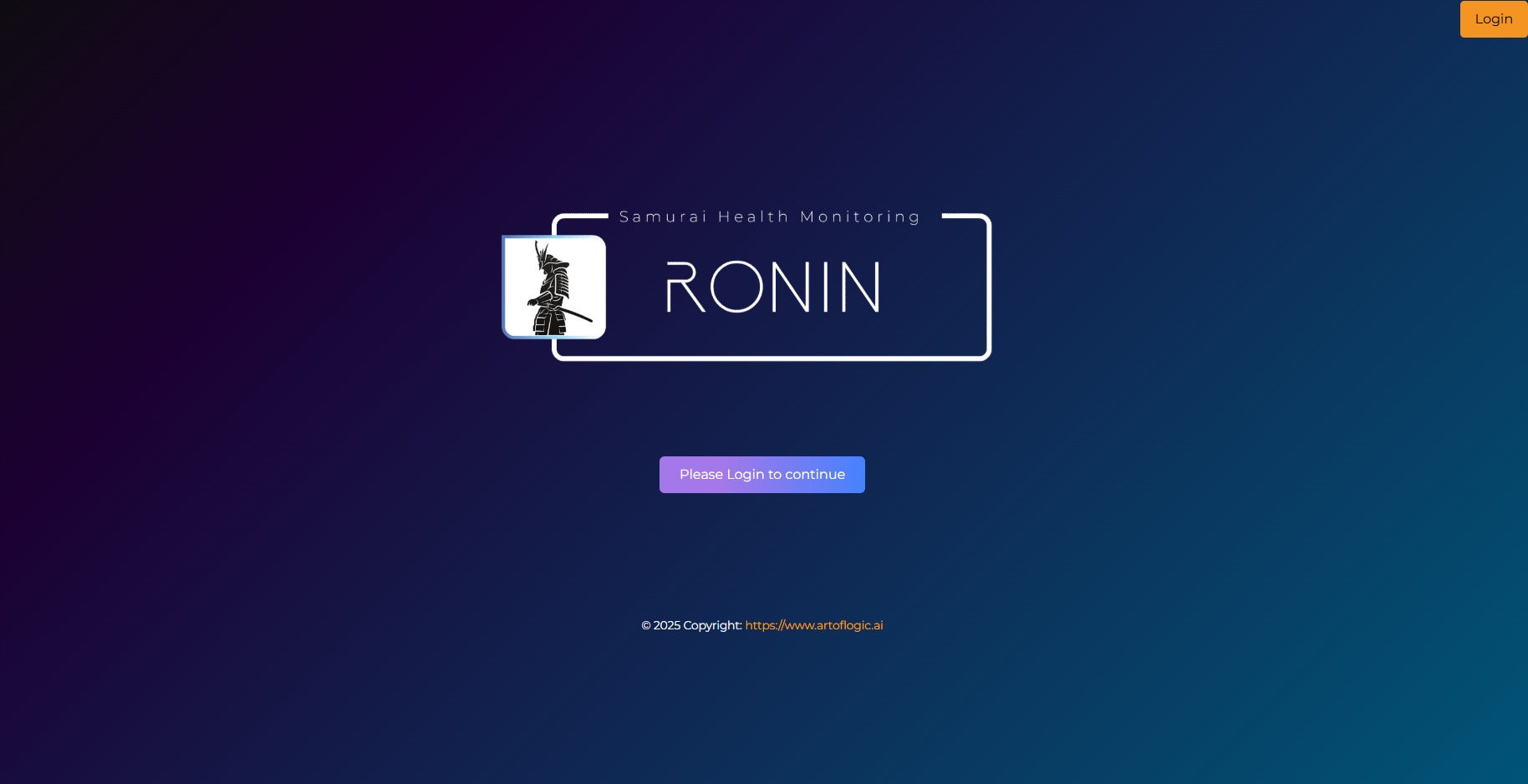
2 - Start Sign Up Process
Click on the "Sign Up" link.
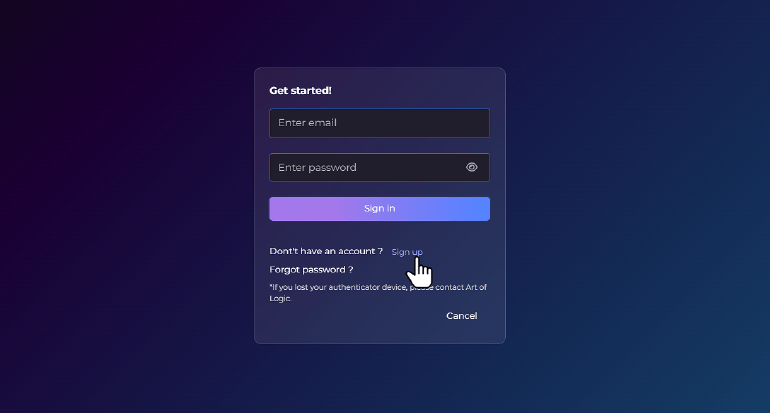
This will bring up the following pop up where you can enter the email you wish to sign up with and create a password for the account:
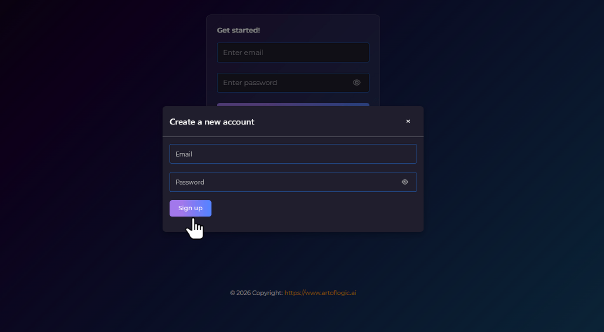
3 - Email Verification Code
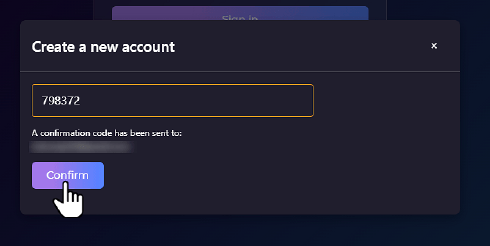
After you click the Sign Up button in the previous step you will see the following tab pop up asking you to enter a confirmation code.
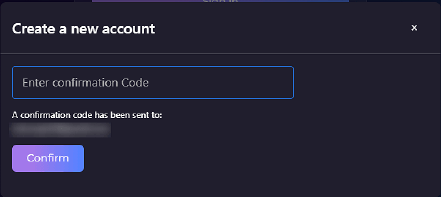
You can find this confirmation code in the email that was sent to the email account you entered in the previous section. The email should look like this:
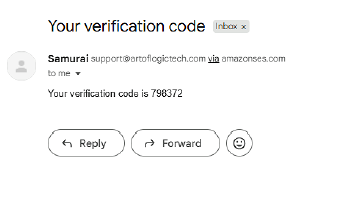
Once you receive the email, copy the confirmation code and enter it into pop up tab from before, then click Confirm.
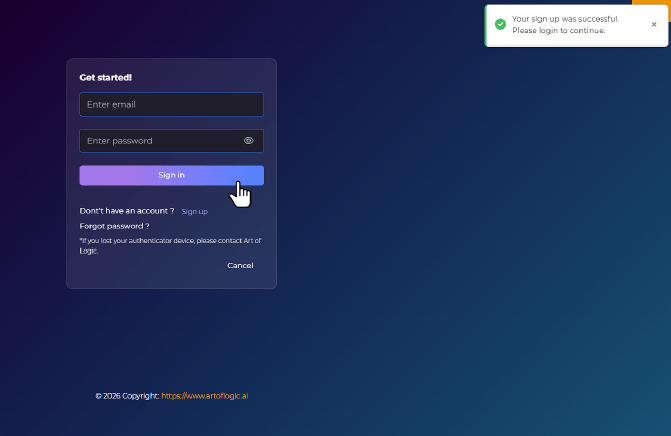
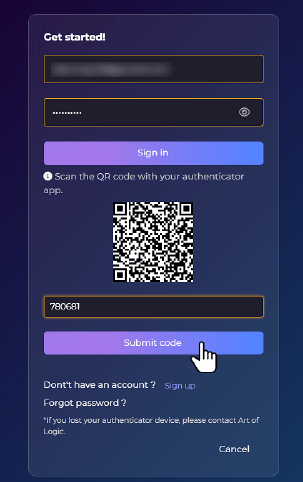
4 - Sign In
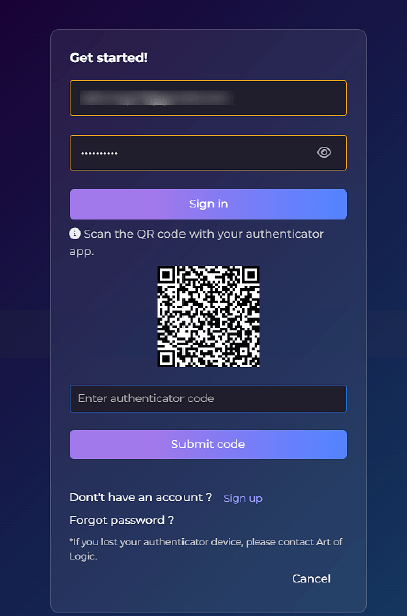
Setup MFA With QR Code
5 - Create Your First Business
Once you have signed in you should see the following page:
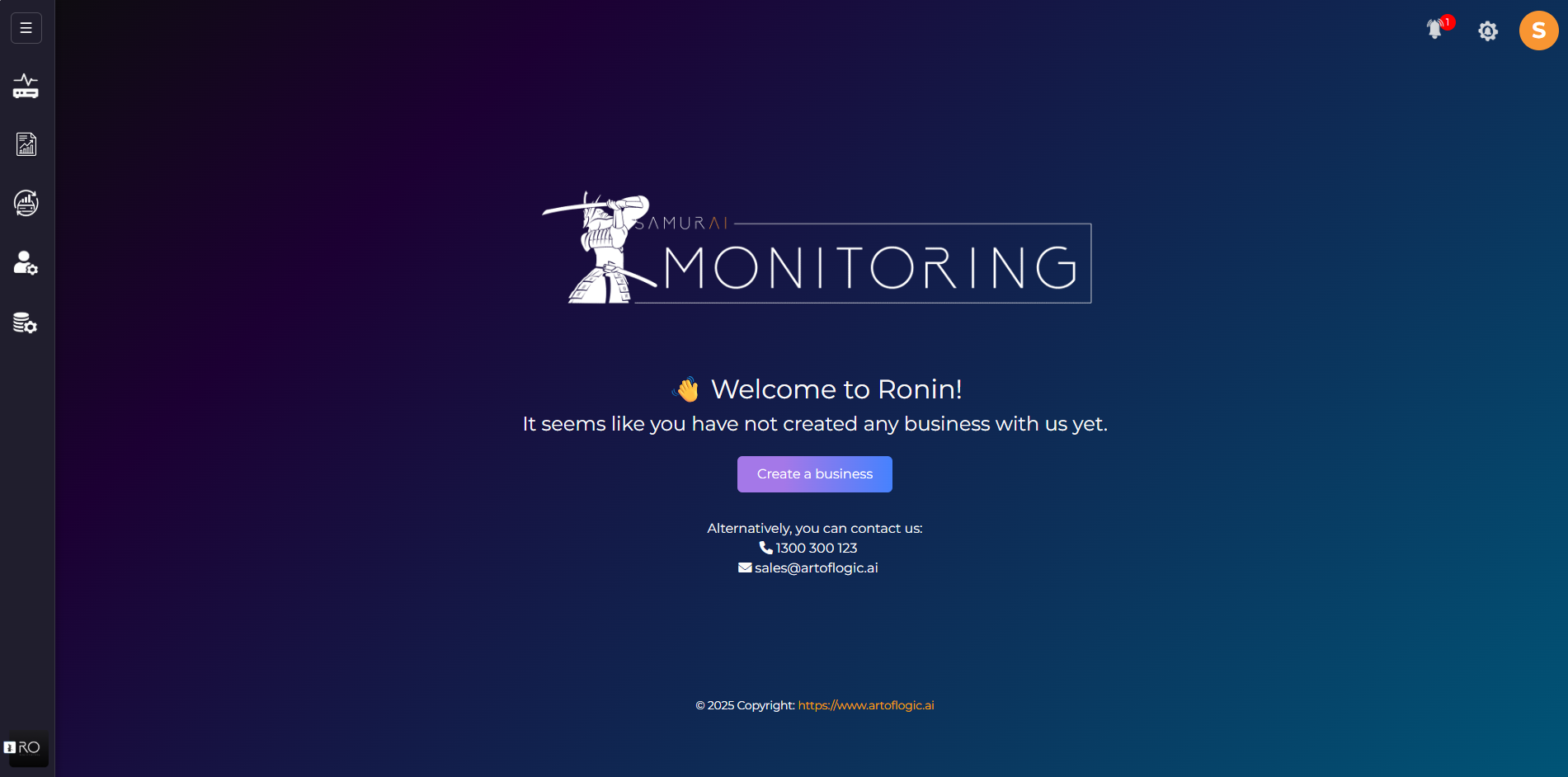
To create a business click on Create a business. This will cause a pop up tab to appear like below:
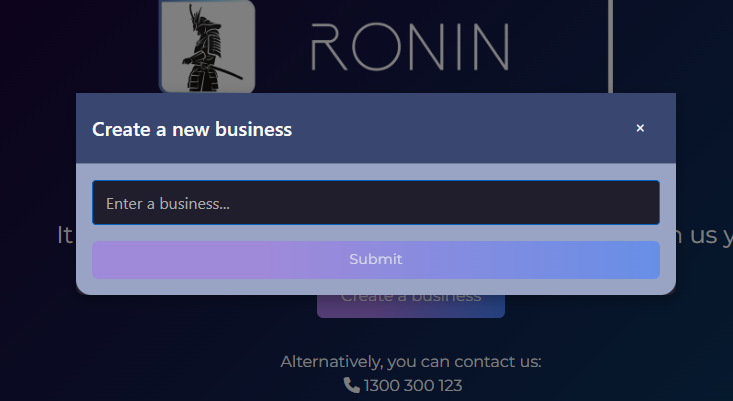
Enter the name you wish to name your business, you will not be able to change the name so make sure it is entered correctly. Once you have entered the name click on Submit.
6 - Where to find your business token?
From anywhere within the Ronin portal you can find your business token by clicking on your profile icon in the the top right hand side.
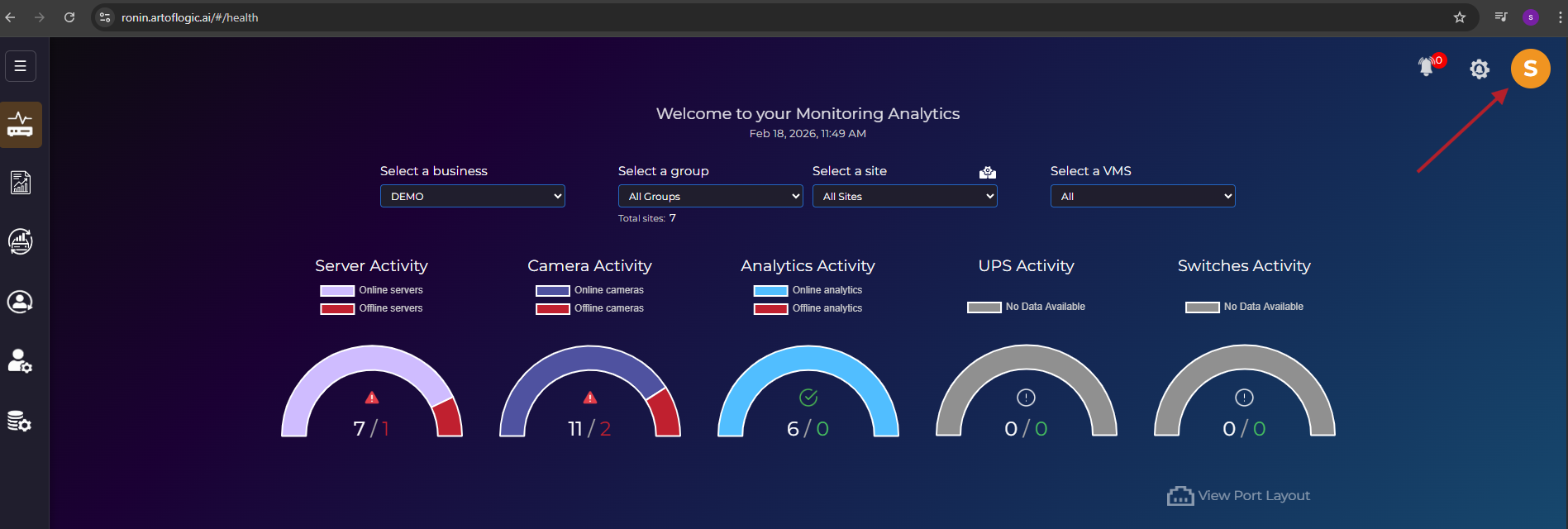
You will then see the following tab pop up;
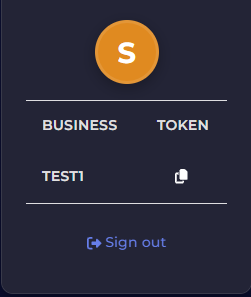
Then click on the copy icon to copy your business token to your clipboard.